> ## Documentation Index
> Fetch the complete documentation index at: https://www.adspirer.com/docs/llms.txt
> Use this file to discover all available pages before exploring further.
# Connect Codex Desktop to Ad Platforms | Adspirer
> Install Adspirer in Codex inside the ChatGPT desktop app — three chat messages, no terminal. Manage Google, Meta, Amazon, ChatGPT, LinkedIn, and TikTok Ads with 400+ tools.
The ChatGPT desktop app has Codex built in. Switch to Codex, send three messages, and Adspirer is installed and signed in — no terminal, no config files. You get the same plugin as [Codex in the terminal](/docs/ai-clients/codex): 400+ ad platform tools and five advertising skills, running in a chat window.
**Codex Desktop vs. Codex Terminal.** Same plugin, same skills, same Adspirer account. Use the desktop app if you'd rather work in a chat window. Use the [terminal setup](/docs/ai-clients/codex) if you want scheduled, autonomous runs or you already live in a CLI.
## Prerequisites
* The **ChatGPT desktop app** for macOS, Windows, or Linux — [download it here](https://learn.chatgpt.com/docs/app#getting-started)
* A ChatGPT plan that includes Codex (Plus, Pro, Business, or Enterprise)
* An Adspirer account ([free to start](https://adspirer.ai/sign-up?utm_source=docs\&utm_medium=page\&utm_content=signup)) — you can also create one during the sign-in step
* At least one ad platform account: Google Ads, Meta Ads, Amazon Ads, ChatGPT Ads, LinkedIn Ads, or TikTok Ads
## Setup (3 Messages)
Download the app from [OpenAI's desktop app page](https://learn.chatgpt.com/docs/app#getting-started) — it covers macOS, Windows, and Linux. Open it and sign in with your ChatGPT account.
Already have it? Make sure it's up to date. Codex only appears in recent versions.
Click the dropdown at the top left of the sidebar (it says **ChatGPT**) and choose **Codex**. The sidebar switches to Codex's — **New chat**, **Projects**, **Plugins**, and so on.
Click **New chat**. Codex works inside a folder on your computer. When it asks where to work, pick or create one for your ads work — if you keep brand guidelines or media plans there, the agent reads them.
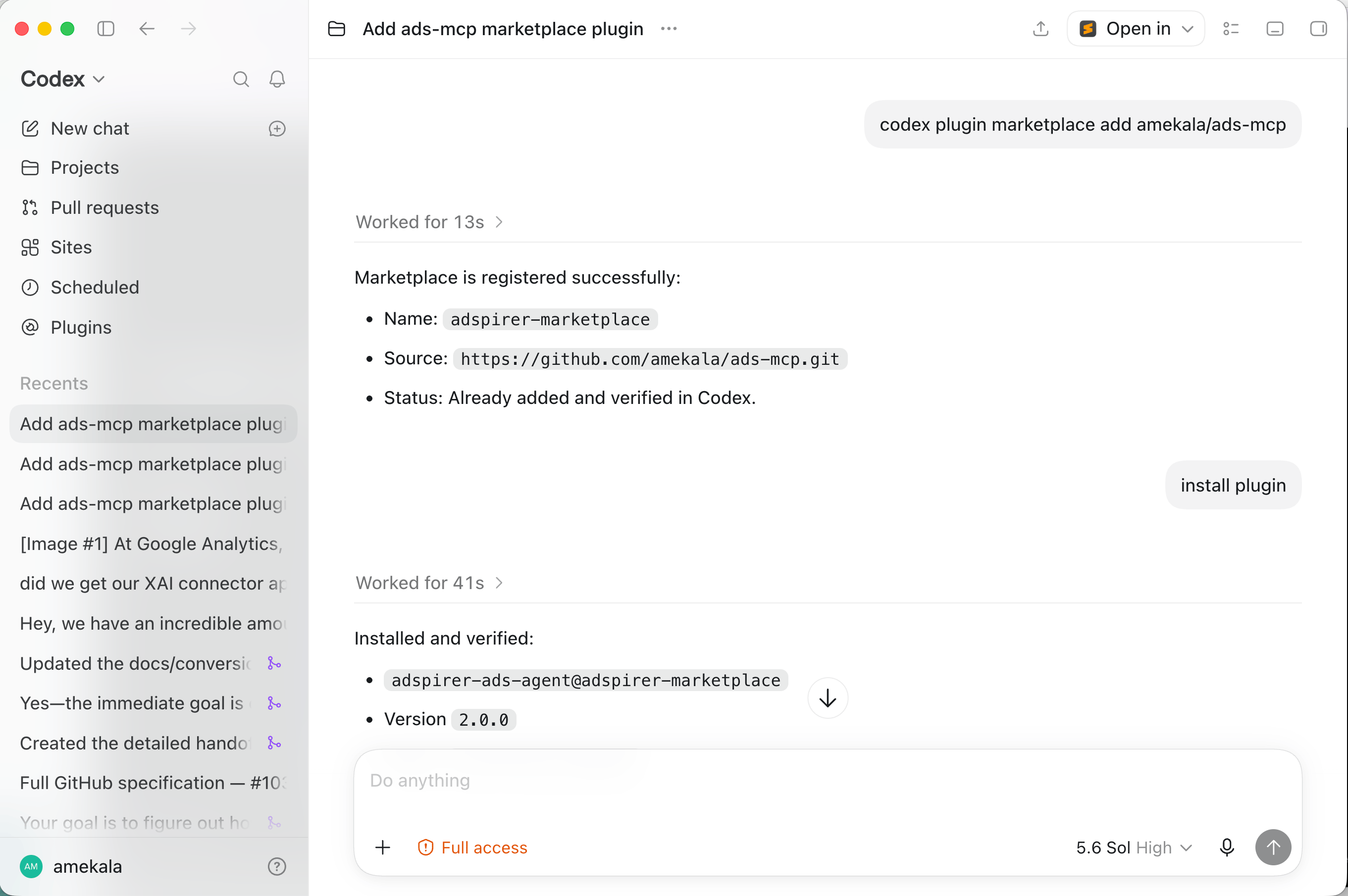
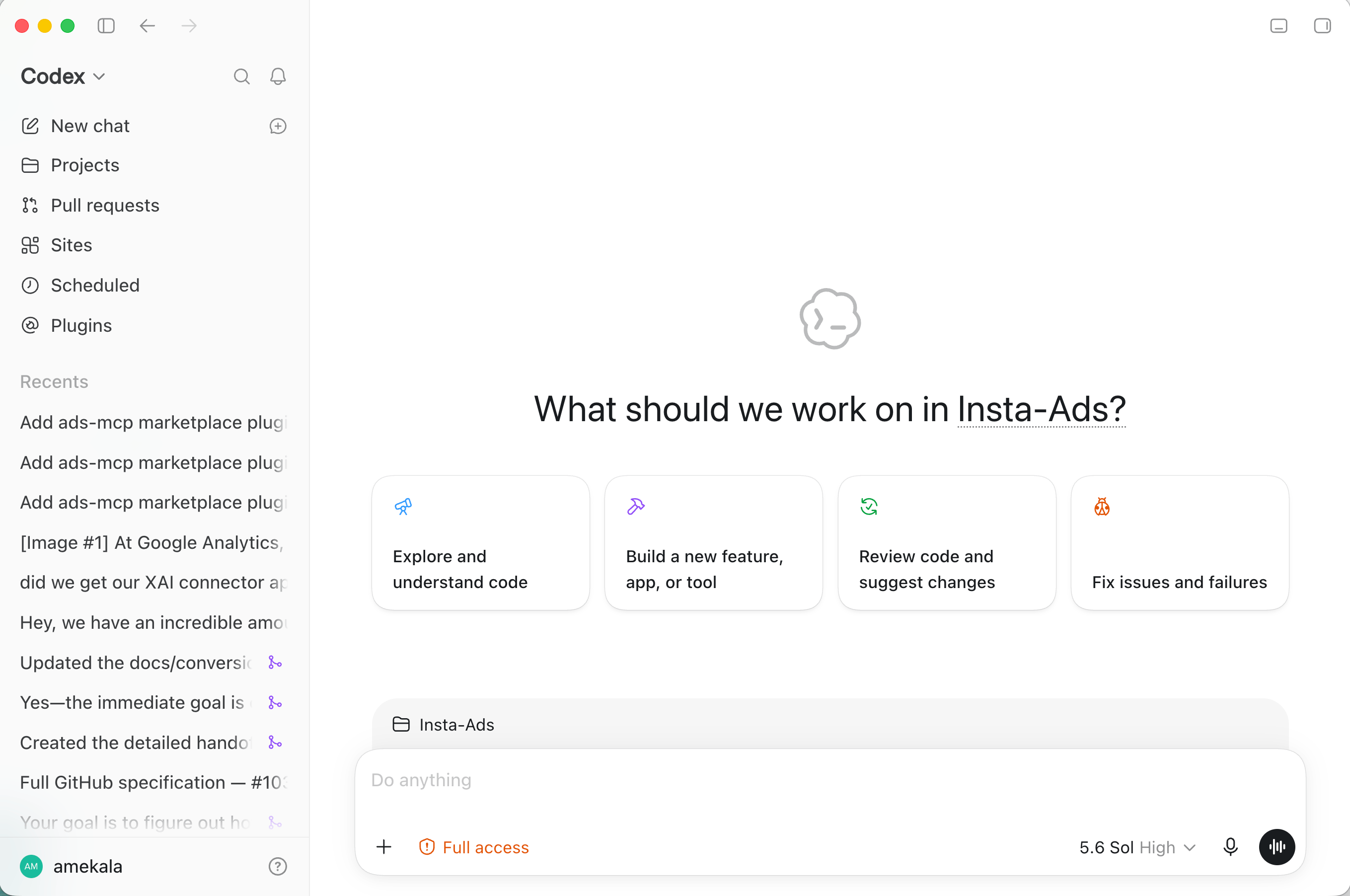 Send this as a chat message. Codex runs it for you — if it asks permission to run a command, approve it.
```
codex plugin marketplace add amekala/ads-mcp
```
Codex confirms **Marketplace is registered successfully**, naming it `adspirer-marketplace` with the source `github.com/amekala/ads-mcp`.
```
install plugin
```
Codex confirms **Installed and verified** — `adspirer-ads-agent@adspirer-marketplace`.
Send this as a chat message. Codex runs it for you — if it asks permission to run a command, approve it.
```
codex plugin marketplace add amekala/ads-mcp
```
Codex confirms **Marketplace is registered successfully**, naming it `adspirer-marketplace` with the source `github.com/amekala/ads-mcp`.
```
install plugin
```
Codex confirms **Installed and verified** — `adspirer-ads-agent@adspirer-marketplace`.
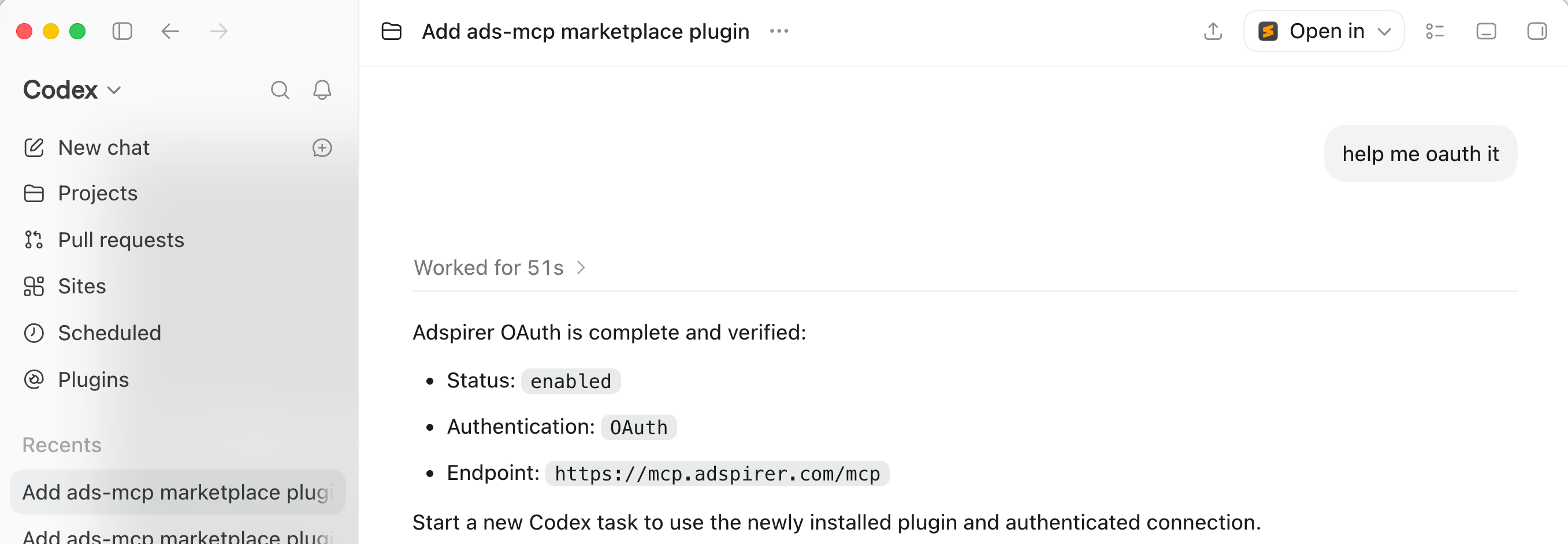
 ```
help me oauth it
```
Your browser opens Adspirer's login page. Sign in (or create an account), click **Authorize**, and link the ad platforms you want to manage. Back in Codex you'll see **Adspirer OAuth is complete and verified**, with the endpoint `https://mcp.adspirer.com/mcp` and status `enabled`.
```
help me oauth it
```
Your browser opens Adspirer's login page. Sign in (or create an account), click **Authorize**, and link the ad platforms you want to manage. Back in Codex you'll see **Adspirer OAuth is complete and verified**, with the endpoint `https://mcp.adspirer.com/mcp` and status `enabled`.
 The plugin loads in your next task, so click **New chat** and ask:
```
Check my connected ad platforms
```
You should see a table of your connected accounts with account IDs, names, and connection status.
15 free tool calls/month. No credit card required. Connect your ad accounts in 2 minutes.
You're connected. Codex in the desktop app now has Adspirer's 400+ advertising tools and five skills — the same plugin as the terminal setup.
## Optional Add-Ons
Two things that make Codex noticeably more useful for ads work. Neither is required — the setup above is complete without them.
### Let Codex use your computer
With **Computer use** on, Codex can work inside your other apps, not just call Adspirer's tools: open Ads Manager or Merchant Center in Chrome to check something the API doesn't expose, read a budget sheet in Excel, or drop a report into one. Codex asks before it touches an app, and you can set **Always allow** per app once you trust it.
In the ChatGPT desktop app, open **Settings → Computer use** and switch on the apps you want Codex to reach: **Any App**, **Google Chrome** (it installs a browser extension — **Manage** shows whether it's in), and **Microsoft Excel**. Leave **Locked use** off unless you want tasks to keep running while your Mac is locked.
The plugin loads in your next task, so click **New chat** and ask:
```
Check my connected ad platforms
```
You should see a table of your connected accounts with account IDs, names, and connection status.
15 free tool calls/month. No credit card required. Connect your ad accounts in 2 minutes.
You're connected. Codex in the desktop app now has Adspirer's 400+ advertising tools and five skills — the same plugin as the terminal setup.
## Optional Add-Ons
Two things that make Codex noticeably more useful for ads work. Neither is required — the setup above is complete without them.
### Let Codex use your computer
With **Computer use** on, Codex can work inside your other apps, not just call Adspirer's tools: open Ads Manager or Merchant Center in Chrome to check something the API doesn't expose, read a budget sheet in Excel, or drop a report into one. Codex asks before it touches an app, and you can set **Always allow** per app once you trust it.
In the ChatGPT desktop app, open **Settings → Computer use** and switch on the apps you want Codex to reach: **Any App**, **Google Chrome** (it installs a browser extension — **Manage** shows whether it's in), and **Microsoft Excel**. Leave **Locked use** off unless you want tasks to keep running while your Mac is locked.
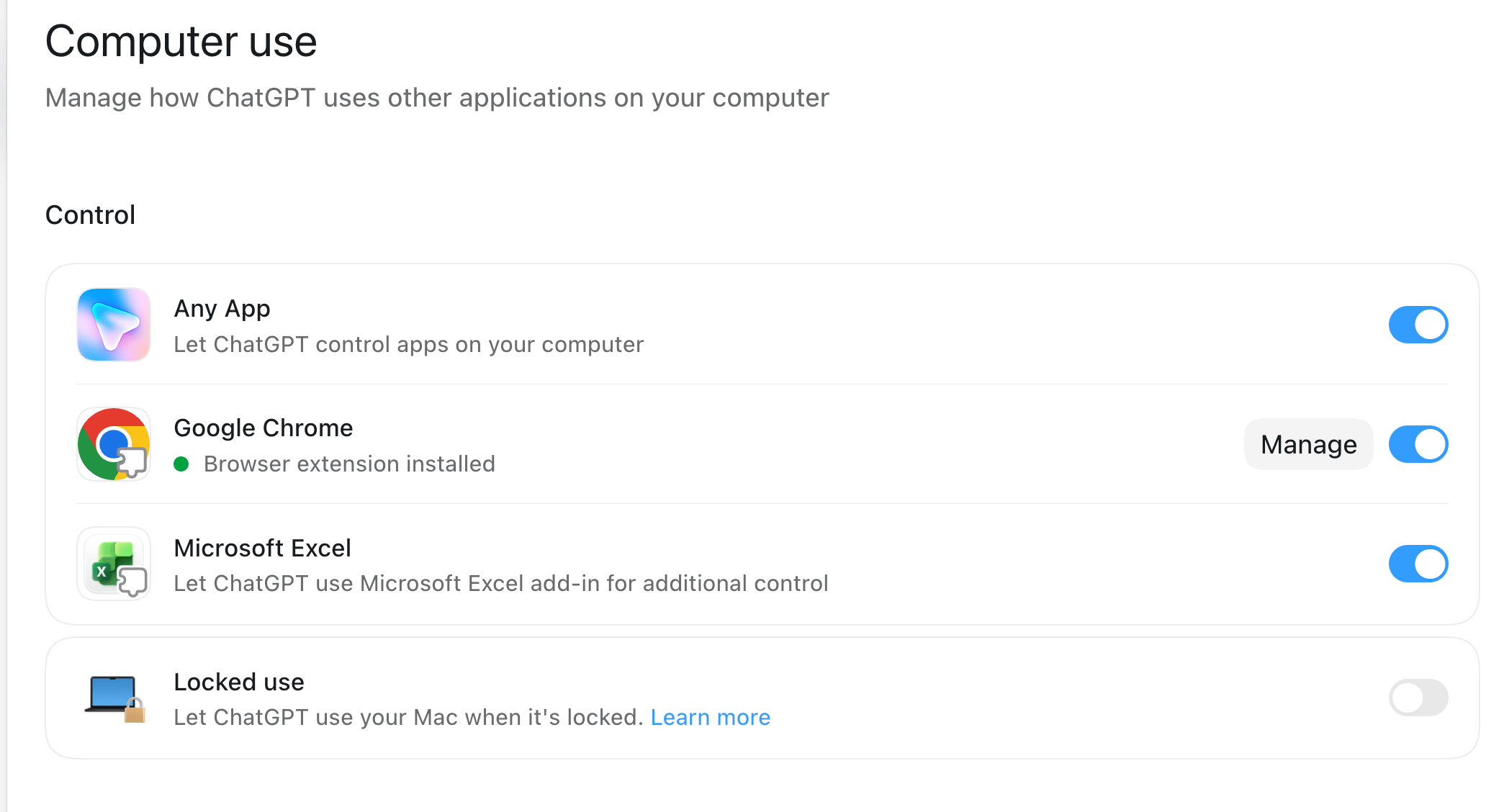 On macOS the app asks for **Screen Recording** and **Accessibility** permissions the first time — grant both, or Computer use can't see or click anything. Available on macOS and Windows.
Open **Settings → Integrations → Computer history** and click **Turn on**. Codex turns your recent activity into memories it can use, so "pick up where I left off on the Q4 budget" means something. Use **Permissions → Choose** to keep apps and sites you'd rather not share — your bank, your inbox — out of it.
On macOS the app asks for **Screen Recording** and **Accessibility** permissions the first time — grant both, or Computer use can't see or click anything. Available on macOS and Windows.
Open **Settings → Integrations → Computer history** and click **Turn on**. Codex turns your recent activity into memories it can use, so "pick up where I left off on the Q4 budget" means something. Use **Permissions → Choose** to keep apps and sites you'd rather not share — your bank, your inbox — out of it.
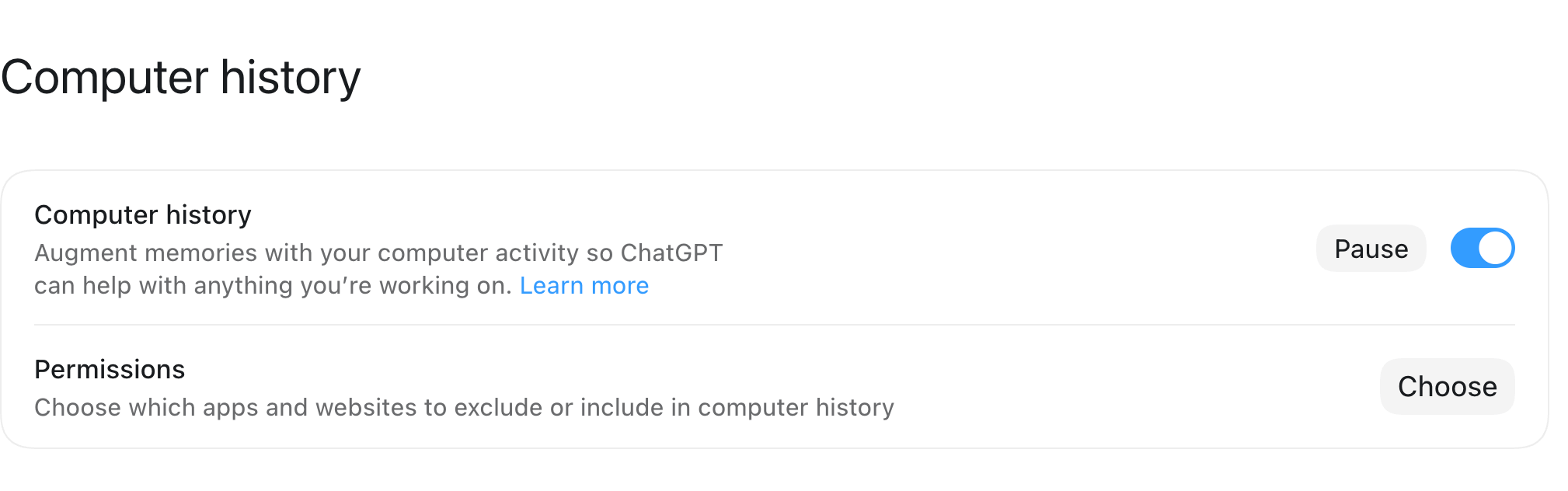 It needs Memories turned on, it's off by default, and on Business and Enterprise plans an admin has to allow it before you'll see the switch.
Adspirer's safety rails — campaigns created paused, budget changes confirmed first — apply to its tools, not to clicks Codex makes in a browser. When a task touches an ad platform's web UI, leave Chrome on ask-each-time rather than **Always allow**, and let the Adspirer plugin do the writes.
### Install your Expert Kit
The [Prompt Engineering Playbook](/docs/agent-skills/prompt-engineering-playbook) generates an **Expert Kit** from one of your ad accounts: an agent with account-specific instructions, a skill, a prompt book graded Beginner → Expert, and reference files on the account and on working with Adspirer. It's a paid add-on (included on annual plans) — pricing and what's inside are on that page. On Codex Desktop you don't copy files anywhere: you hand the folder to Codex.
Go to [adspirer.ai/expert-space](https://adspirer.ai/expert-space), open the kit for the account, and click **Download kit (.zip)**. Unzip it — you get one folder, named like `google-ads-expert-/`, containing:
```
AGENTS.md
PROMPTBOOK.md
README.md
SKILL.md
agents/google-ads-expert-.md
agents/google-ads-expert-.toml
references/account-profile.md
references/working-with-adspirer.md
```
In a Codex chat inside your ads project folder, attach the unzipped folder (click **+** in the composer, or drag the folder in) and send:
```
Install this kit's contents and instructions for this project
```
Codex installs the kit into the project: the skill goes where Codex loads skills from, the agent definition registers your account's expert, and every file is checked against the download. It keeps `AGENTS.md` inside the skill rather than at the project root, so it doesn't override instructions you already have. Your Adspirer sign-in is untouched.
Codex ends with a link to the new agent — click it, or start a **New chat** and ask for the expert by name. From here the agent knows your account's structure, spend history, and operating doctrine. Open `PROMPTBOOK.md` for prompts written against your real campaigns.
## Desktop or Terminal?
| | **Codex Desktop** | **Codex Terminal** |
| -------------- | ---------------------------------------------- | ---------------------------------------------- |
| Setup | Three chat messages | One command, then `/plugins` |
| Where you work | A chat window in the ChatGPT desktop app | Your terminal |
| Best for | Day-to-day analysis, ad copy, campaign builds | Scheduled and autonomous runs, agent configs |
| Plugin | `adspirer-ads-agent` — same tools, same skills | `adspirer-ads-agent` — same tools, same skills |
Both connect to the same Adspirer account, so you can install in both and switch freely. The [Codex Terminal guide](/docs/ai-clients/codex) covers scheduled runs, agent configuration, and the manual install.
## What You Can Do
400+ tools across 6 ad platforms:
| Platform | Tools | Key Capabilities |
| ---------------- | ----- | --------------------------------------------------------------------------------------------------------------------- |
| **Google Ads** | 147 | Keyword research, Search & PMax campaigns, wasted spend detection, budget reallocation, search term analysis |
| **Amazon Ads** | 61 | Sponsored Products, Brands & Display, ASIN/keyword targeting, ACOS & ROAS analytics, budget recommendations |
| **LinkedIn Ads** | 55 | B2B targeting (job titles, industries, company size), sponsored content, lead gen forms, performance analysis |
| **Meta Ads** | 59 | Image/video/carousel campaigns, creative fatigue detection, audience targeting, placement optimization |
| **TikTok Ads** | 37 | In-feed campaigns, asset validation, performance tracking |
| **ChatGPT Ads** | 36 | Pay-per-click chat-card ads inside ChatGPT responses, launch orchestrator, conversions (pixel + CAPI); created paused |
The plugin also brings five skills — campaign management, brand workspace setup, performance review, ad copy, and wasted spend. You don't need to name them; describe what you want and Codex picks the right one. The [skill reference](/docs/ai-clients/codex#available-skills) is on the terminal page.
## Example Prompts
### First Look at Your Accounts
Check connected ad platforms and summarize recent campaign performance for this brand.
If this is a new workspace, set it up first.
### Find Wasted Spend
Find wasted ad spend across all my active campaigns and give me a prioritized list of fixes.
### Write Ad Copy in Your Brand Voice
Write 3 Google Ads headlines and 2 descriptions for my top campaign using my brand voice.
### Create a Campaign
Create a Google Ads search campaign for my SaaS product:
* Product: project management tool for remote teams
* Budget: \$60/day
* Research keywords first, then group by intent
## Troubleshooting
| Problem | Solution |
| -------------------------------------------------- | -------------------------------------------------------------------------------------------------------------------------------- |
| ChatGPT explains the command instead of running it | You're in ChatGPT, not Codex. Switch with the top-left dropdown and send it again in a Codex chat. |
| Codex asks for permission to run a command | Approve it. The marketplace and install steps run `codex` commands on your machine. |
| No browser window opened for sign-in | Send `help me oauth it` again, or ask Codex to run `codex mcp login adspirer`. |
| Plugin installed but Adspirer tools don't respond | Click **New chat**. The plugin loads in the next task, not the one where you installed it. |
| "No ad platforms connected" | Connect them at [adspirer.ai/connections](https://adspirer.ai/connections), then ask again. |
| Marketplace add fails with a git error | The plugin is fetched from GitHub. On macOS, accept the prompt to install command line developer tools, then resend the message. |
## FAQ
No. Codex is built into the ChatGPT desktop app. The three messages above are all the setup there is — Codex runs the underlying commands for you.
Yes. Both install `adspirer-ads-agent` from the Adspirer marketplace: the same 400+ tools, the same five skills, the same brand-workspace behavior. If you later want scheduled, autonomous runs, follow the [Codex Terminal guide](/docs/ai-clients/codex) — your Adspirer sign-in carries over.
Yes. The [ChatGPT app](/docs/ai-clients/chatgpt) and Codex Desktop use the same Adspirer account and the same tool-call quota. Use ChatGPT for quick questions and interactive dashboards; use Codex when you want the agent to work through a multi-step task in your folder.
It treats the folder as your brand workspace. On first use the plugin scans it for brand docs — guidelines, media plans, briefs — pulls live campaign data, and writes an `AGENTS.md` with what it learned, so later chats start with context. An empty folder works too; the agent builds the workspace from your ad accounts.
No. Every campaign is created **paused**, and budget changes need your confirmation. The agent analyzes, recommends, and drafts — you approve spend.
Adspirer pricing is based on tool calls, not ad spend. Free tier: 15 calls/month. Plus: $49/mo for 150 calls. Pro: $99/mo for 600 calls. Max: \$199/mo for 3,000 calls. See [full pricing](https://www.adspirer.com/pricing).
## Related Documentation
* [Codex Terminal Setup](/docs/ai-clients/codex) — CLI install, scheduled runs, and agent configuration
* [Codex Agent](/docs/agent-skills/codex-agent) — How the Adspirer marketing agent works inside Codex
* [ChatGPT Setup](/docs/ai-clients/chatgpt) — The Adspirer app in ChatGPT
* [Google Ads Integration](/docs/ad-platforms/google-ads) — Full Google Ads tool reference
* [Pricing & Plans](https://www.adspirer.com/pricing)
* [Prompt Engineering Playbook](/docs/agent-skills/prompt-engineering-playbook) — A custom skill and prompt book generated from your own ad account (\$39 one-time)
It needs Memories turned on, it's off by default, and on Business and Enterprise plans an admin has to allow it before you'll see the switch.
Adspirer's safety rails — campaigns created paused, budget changes confirmed first — apply to its tools, not to clicks Codex makes in a browser. When a task touches an ad platform's web UI, leave Chrome on ask-each-time rather than **Always allow**, and let the Adspirer plugin do the writes.
### Install your Expert Kit
The [Prompt Engineering Playbook](/docs/agent-skills/prompt-engineering-playbook) generates an **Expert Kit** from one of your ad accounts: an agent with account-specific instructions, a skill, a prompt book graded Beginner → Expert, and reference files on the account and on working with Adspirer. It's a paid add-on (included on annual plans) — pricing and what's inside are on that page. On Codex Desktop you don't copy files anywhere: you hand the folder to Codex.
Go to [adspirer.ai/expert-space](https://adspirer.ai/expert-space), open the kit for the account, and click **Download kit (.zip)**. Unzip it — you get one folder, named like `google-ads-expert-/`, containing:
```
AGENTS.md
PROMPTBOOK.md
README.md
SKILL.md
agents/google-ads-expert-.md
agents/google-ads-expert-.toml
references/account-profile.md
references/working-with-adspirer.md
```
In a Codex chat inside your ads project folder, attach the unzipped folder (click **+** in the composer, or drag the folder in) and send:
```
Install this kit's contents and instructions for this project
```
Codex installs the kit into the project: the skill goes where Codex loads skills from, the agent definition registers your account's expert, and every file is checked against the download. It keeps `AGENTS.md` inside the skill rather than at the project root, so it doesn't override instructions you already have. Your Adspirer sign-in is untouched.
Codex ends with a link to the new agent — click it, or start a **New chat** and ask for the expert by name. From here the agent knows your account's structure, spend history, and operating doctrine. Open `PROMPTBOOK.md` for prompts written against your real campaigns.
## Desktop or Terminal?
| | **Codex Desktop** | **Codex Terminal** |
| -------------- | ---------------------------------------------- | ---------------------------------------------- |
| Setup | Three chat messages | One command, then `/plugins` |
| Where you work | A chat window in the ChatGPT desktop app | Your terminal |
| Best for | Day-to-day analysis, ad copy, campaign builds | Scheduled and autonomous runs, agent configs |
| Plugin | `adspirer-ads-agent` — same tools, same skills | `adspirer-ads-agent` — same tools, same skills |
Both connect to the same Adspirer account, so you can install in both and switch freely. The [Codex Terminal guide](/docs/ai-clients/codex) covers scheduled runs, agent configuration, and the manual install.
## What You Can Do
400+ tools across 6 ad platforms:
| Platform | Tools | Key Capabilities |
| ---------------- | ----- | --------------------------------------------------------------------------------------------------------------------- |
| **Google Ads** | 147 | Keyword research, Search & PMax campaigns, wasted spend detection, budget reallocation, search term analysis |
| **Amazon Ads** | 61 | Sponsored Products, Brands & Display, ASIN/keyword targeting, ACOS & ROAS analytics, budget recommendations |
| **LinkedIn Ads** | 55 | B2B targeting (job titles, industries, company size), sponsored content, lead gen forms, performance analysis |
| **Meta Ads** | 59 | Image/video/carousel campaigns, creative fatigue detection, audience targeting, placement optimization |
| **TikTok Ads** | 37 | In-feed campaigns, asset validation, performance tracking |
| **ChatGPT Ads** | 36 | Pay-per-click chat-card ads inside ChatGPT responses, launch orchestrator, conversions (pixel + CAPI); created paused |
The plugin also brings five skills — campaign management, brand workspace setup, performance review, ad copy, and wasted spend. You don't need to name them; describe what you want and Codex picks the right one. The [skill reference](/docs/ai-clients/codex#available-skills) is on the terminal page.
## Example Prompts
### First Look at Your Accounts
Check connected ad platforms and summarize recent campaign performance for this brand.
If this is a new workspace, set it up first.
### Find Wasted Spend
Find wasted ad spend across all my active campaigns and give me a prioritized list of fixes.
### Write Ad Copy in Your Brand Voice
Write 3 Google Ads headlines and 2 descriptions for my top campaign using my brand voice.
### Create a Campaign
Create a Google Ads search campaign for my SaaS product:
* Product: project management tool for remote teams
* Budget: \$60/day
* Research keywords first, then group by intent
## Troubleshooting
| Problem | Solution |
| -------------------------------------------------- | -------------------------------------------------------------------------------------------------------------------------------- |
| ChatGPT explains the command instead of running it | You're in ChatGPT, not Codex. Switch with the top-left dropdown and send it again in a Codex chat. |
| Codex asks for permission to run a command | Approve it. The marketplace and install steps run `codex` commands on your machine. |
| No browser window opened for sign-in | Send `help me oauth it` again, or ask Codex to run `codex mcp login adspirer`. |
| Plugin installed but Adspirer tools don't respond | Click **New chat**. The plugin loads in the next task, not the one where you installed it. |
| "No ad platforms connected" | Connect them at [adspirer.ai/connections](https://adspirer.ai/connections), then ask again. |
| Marketplace add fails with a git error | The plugin is fetched from GitHub. On macOS, accept the prompt to install command line developer tools, then resend the message. |
## FAQ
No. Codex is built into the ChatGPT desktop app. The three messages above are all the setup there is — Codex runs the underlying commands for you.
Yes. Both install `adspirer-ads-agent` from the Adspirer marketplace: the same 400+ tools, the same five skills, the same brand-workspace behavior. If you later want scheduled, autonomous runs, follow the [Codex Terminal guide](/docs/ai-clients/codex) — your Adspirer sign-in carries over.
Yes. The [ChatGPT app](/docs/ai-clients/chatgpt) and Codex Desktop use the same Adspirer account and the same tool-call quota. Use ChatGPT for quick questions and interactive dashboards; use Codex when you want the agent to work through a multi-step task in your folder.
It treats the folder as your brand workspace. On first use the plugin scans it for brand docs — guidelines, media plans, briefs — pulls live campaign data, and writes an `AGENTS.md` with what it learned, so later chats start with context. An empty folder works too; the agent builds the workspace from your ad accounts.
No. Every campaign is created **paused**, and budget changes need your confirmation. The agent analyzes, recommends, and drafts — you approve spend.
Adspirer pricing is based on tool calls, not ad spend. Free tier: 15 calls/month. Plus: $49/mo for 150 calls. Pro: $99/mo for 600 calls. Max: \$199/mo for 3,000 calls. See [full pricing](https://www.adspirer.com/pricing).
## Related Documentation
* [Codex Terminal Setup](/docs/ai-clients/codex) — CLI install, scheduled runs, and agent configuration
* [Codex Agent](/docs/agent-skills/codex-agent) — How the Adspirer marketing agent works inside Codex
* [ChatGPT Setup](/docs/ai-clients/chatgpt) — The Adspirer app in ChatGPT
* [Google Ads Integration](/docs/ad-platforms/google-ads) — Full Google Ads tool reference
* [Pricing & Plans](https://www.adspirer.com/pricing)
* [Prompt Engineering Playbook](/docs/agent-skills/prompt-engineering-playbook) — A custom skill and prompt book generated from your own ad account (\$39 one-time)