

Prerequisites
- The ChatGPT desktop app for macOS, Windows, or Linux — download it here
- A ChatGPT plan that includes Codex (Plus, Pro, Business, or Enterprise)
- An Adspirer account (free to start) — you can also create one during the sign-in step
- At least one ad platform account: Google Ads, Meta Ads, Amazon Ads, ChatGPT Ads, LinkedIn Ads, or TikTok Ads
Setup (3 Messages)
Install the ChatGPT desktop app
Switch to Codex
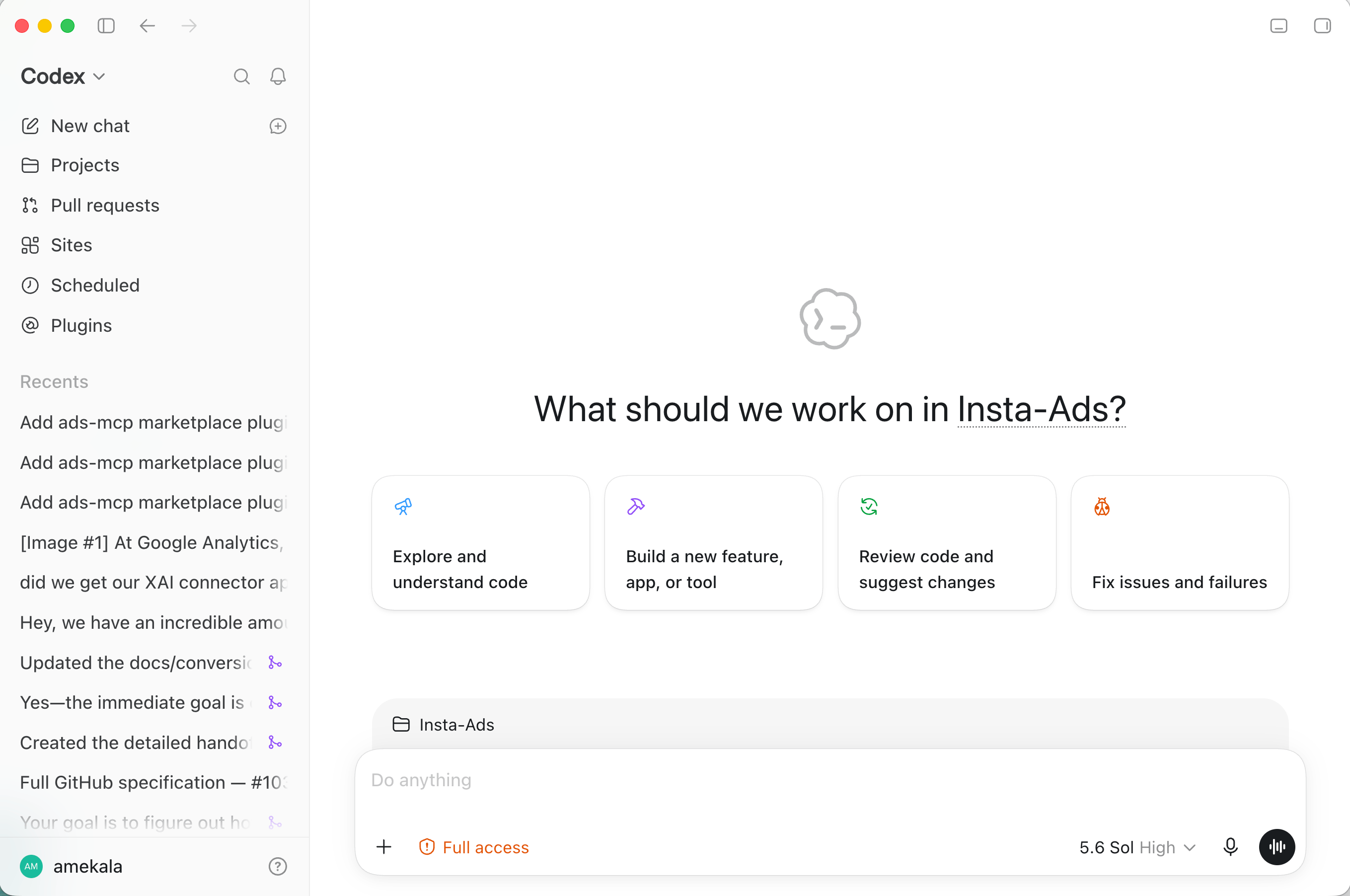
Codex selected in the top-left dropdown, ready for a new chat
Message 1 — add the Adspirer marketplace
adspirer-marketplace with the source github.com/amekala/ads-mcp.Message 2 — install the plugin
adspirer-ads-agent@adspirer-marketplace.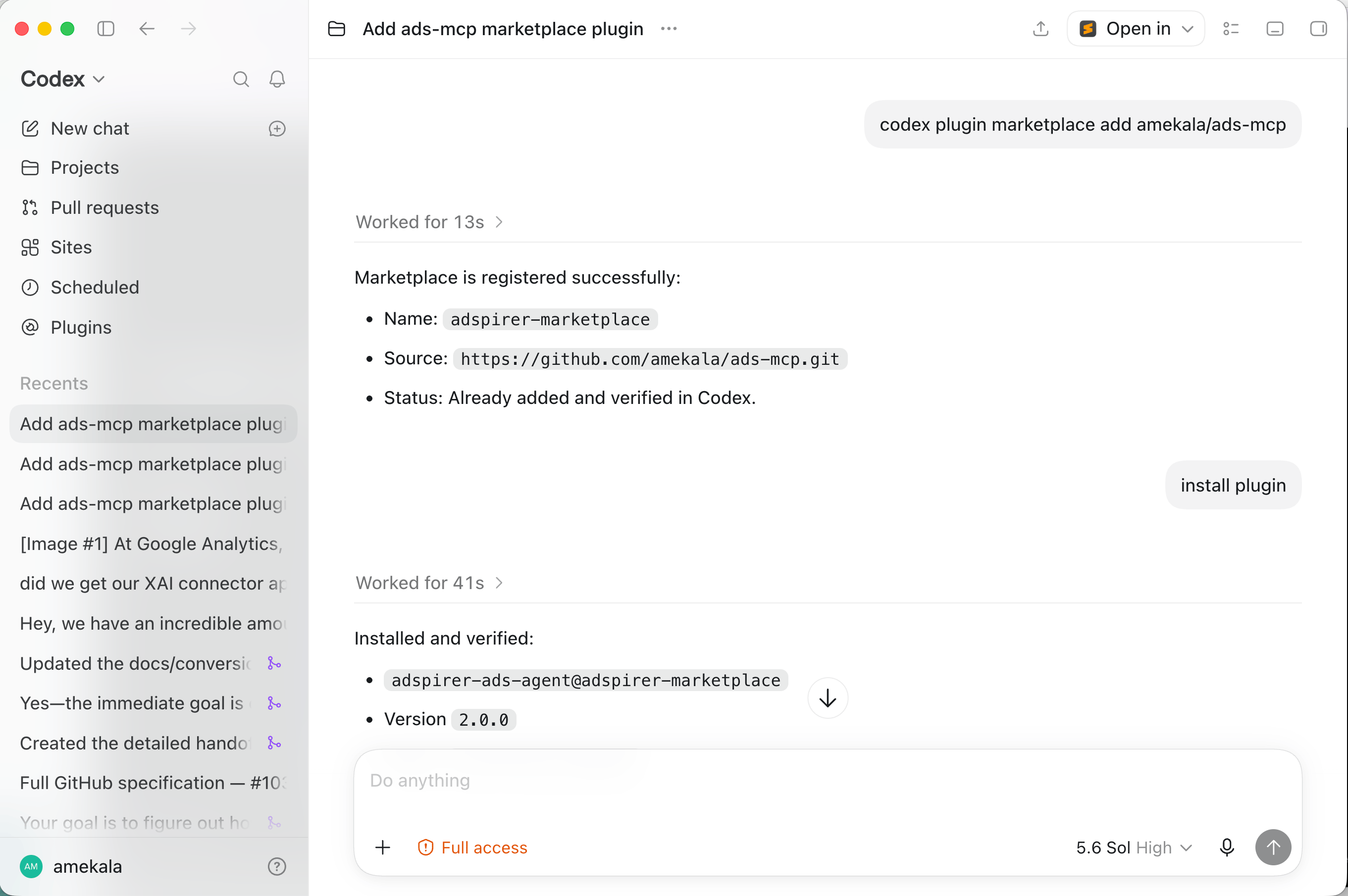
Messages 1 and 2 — marketplace registered, plugin installed
Message 3 — sign in to Adspirer
https://mcp.adspirer.com/mcp and status enabled.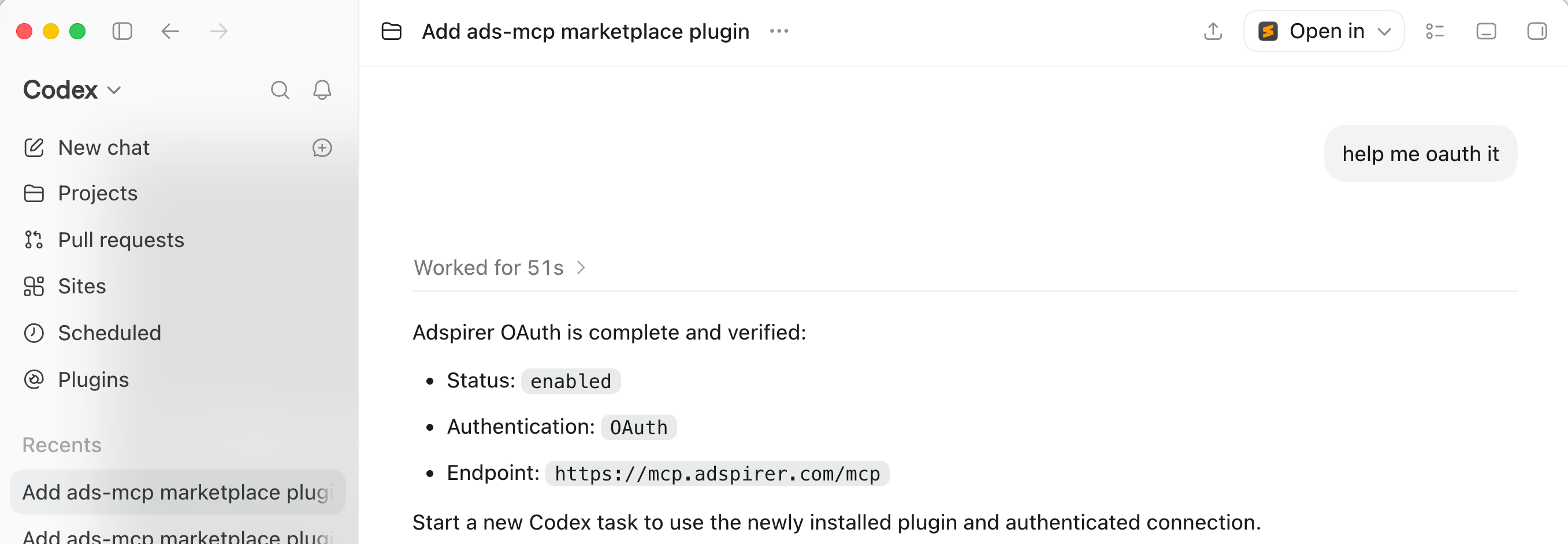
Message 3 — OAuth complete, Adspirer enabled
Start a new chat and check your connections
Try It Now
Sign up for Adspirer — free to start
Optional Add-Ons
Two things that make Codex noticeably more useful for ads work. Neither is required — the setup above is complete without them.Let Codex use your computer
With Computer use on, Codex can work inside your other apps, not just call Adspirer’s tools: open Ads Manager or Merchant Center in Chrome to check something the API doesn’t expose, read a budget sheet in Excel, or drop a report into one. Codex asks before it touches an app, and you can set Always allow per app once you trust it.Turn on Computer use
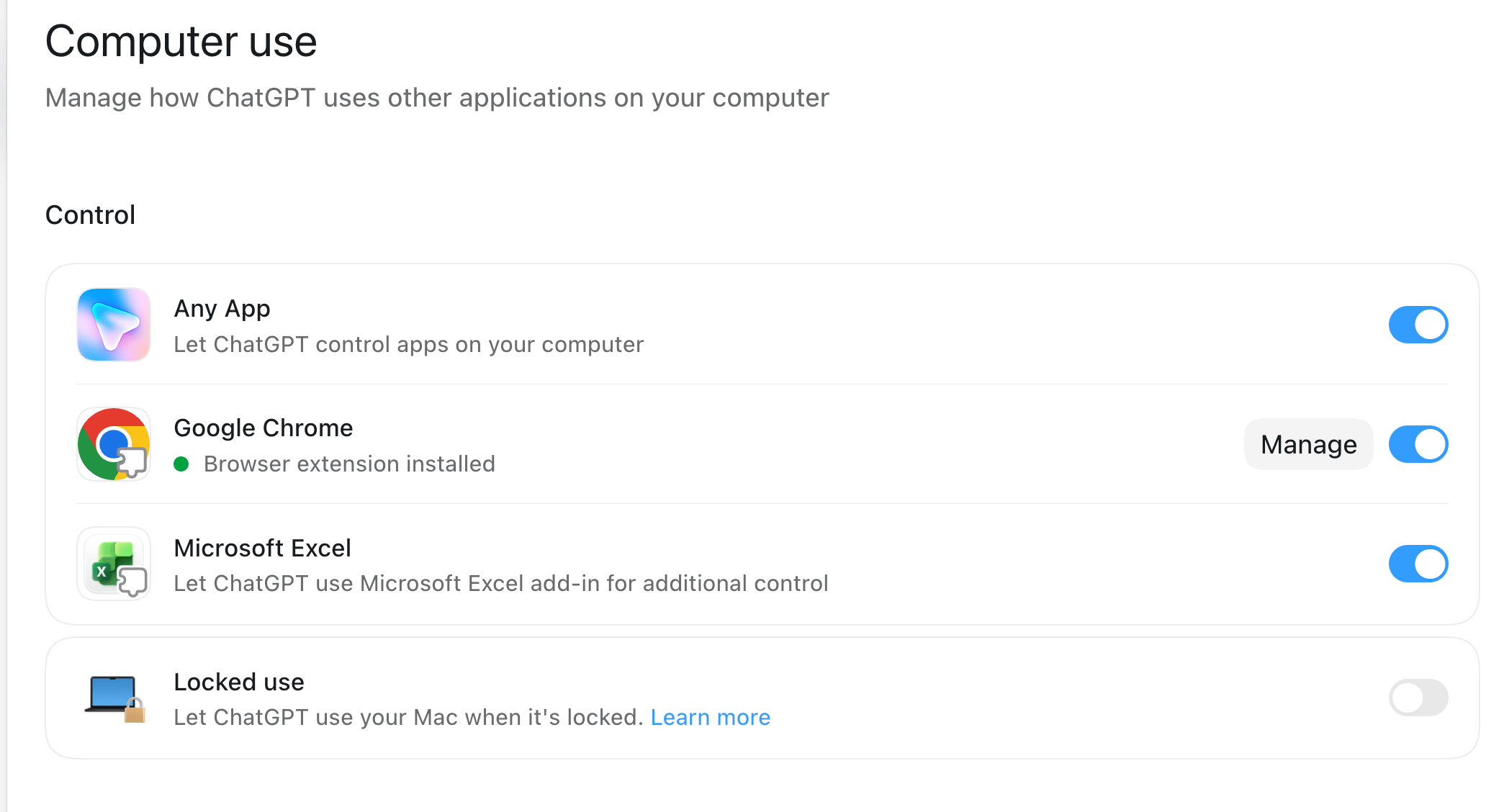
Settings → Computer use — Any App, Google Chrome, and Microsoft Excel switched on
Turn on Computer history (macOS)
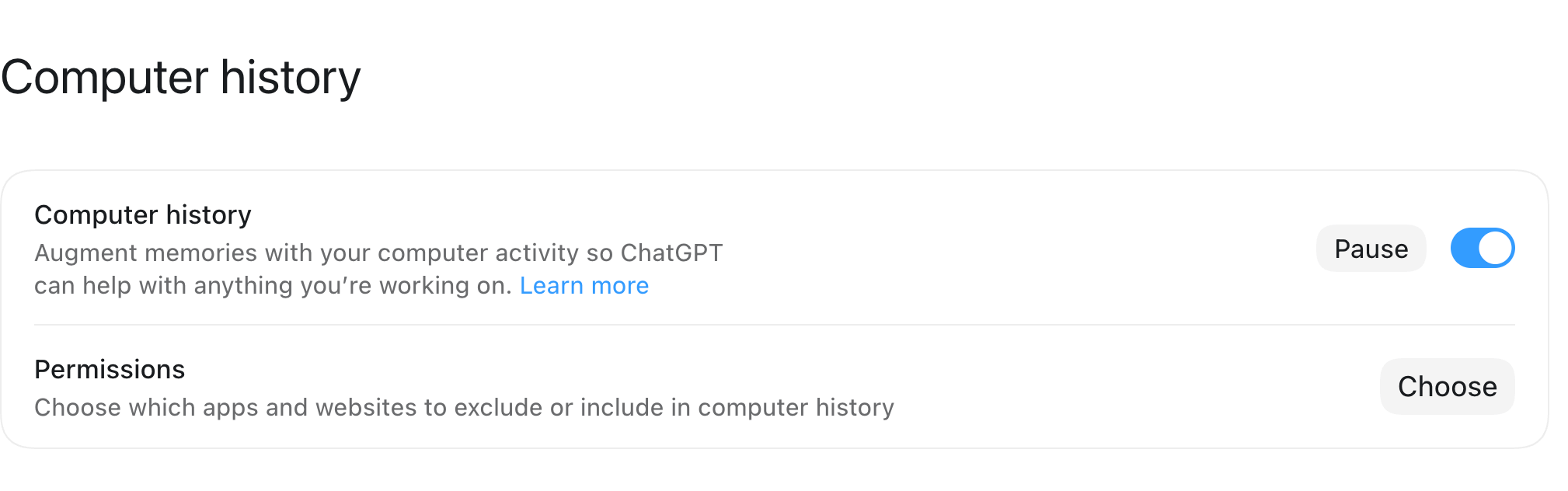
Settings → Computer history, with Permissions for including or excluding apps and websites
Install your Expert Kit
The Prompt Engineering Playbook generates an Expert Kit from one of your ad accounts: an agent with account-specific instructions, a skill, a prompt book graded Beginner → Expert, and reference files on the account and on working with Adspirer. It’s a paid add-on (included on annual plans) — pricing and what’s inside are on that page. On Codex Desktop you don’t copy files anywhere: you hand the folder to Codex.Download the kit
google-ads-expert-<brand>/, containing:Hand it to Codex
AGENTS.md inside the skill rather than at the project root, so it doesn’t override instructions you already have. Your Adspirer sign-in is untouched.Start a new task with the expert
PROMPTBOOK.md for prompts written against your real campaigns.Desktop or Terminal?
What You Can Do
400+ tools across 6 ad platforms:Example Prompts
First Look at Your Accounts
Connection check plus a performance summary — sets up the brand workspace if this is a fresh folder.
Find Wasted Spend
Cross-platform wasted spend audit with a prioritized fix list.
Write Ad Copy in Your Brand Voice
Headlines and descriptions from real campaign data and your brand docs.
Create a Campaign
Google Search campaign with keyword research and intent grouping. Created paused.
Troubleshooting
FAQ
Do I need to install the Codex CLI separately?
Do I need to install the Codex CLI separately?
Is this the same plugin as the terminal install?
Is this the same plugin as the terminal install?
adspirer-ads-agent from the Adspirer marketplace: the same 400+ tools, the same five skills, the same brand-workspace behavior. If you later want scheduled, autonomous runs, follow the Codex Terminal guide — your Adspirer sign-in carries over.Can I also use the Adspirer app in ChatGPT itself?
Can I also use the Adspirer app in ChatGPT itself?
What does Codex do with the folder I pick?
What does Codex do with the folder I pick?
AGENTS.md with what it learned, so later chats start with context. An empty folder works too; the agent builds the workspace from your ad accounts.Can the agent spend money on its own?
Can the agent spend money on its own?
How much does this cost?
How much does this cost?
Related Documentation
- Codex Terminal Setup — CLI install, scheduled runs, and agent configuration
- Codex Agent — How the Adspirer marketing agent works inside Codex
- ChatGPT Setup — The Adspirer app in ChatGPT
- Google Ads Integration — Full Google Ads tool reference
- Pricing & Plans
- Prompt Engineering Playbook — A custom skill and prompt book generated from your own ad account ($39 one-time)